Lab 2 - Deploy Applications using Azure Container Apps
The demo application will be manually deployed in this step.
Create a Container App
The demo app requires two containers: a back-end, words, and a front-end, web.
words:1.0.0
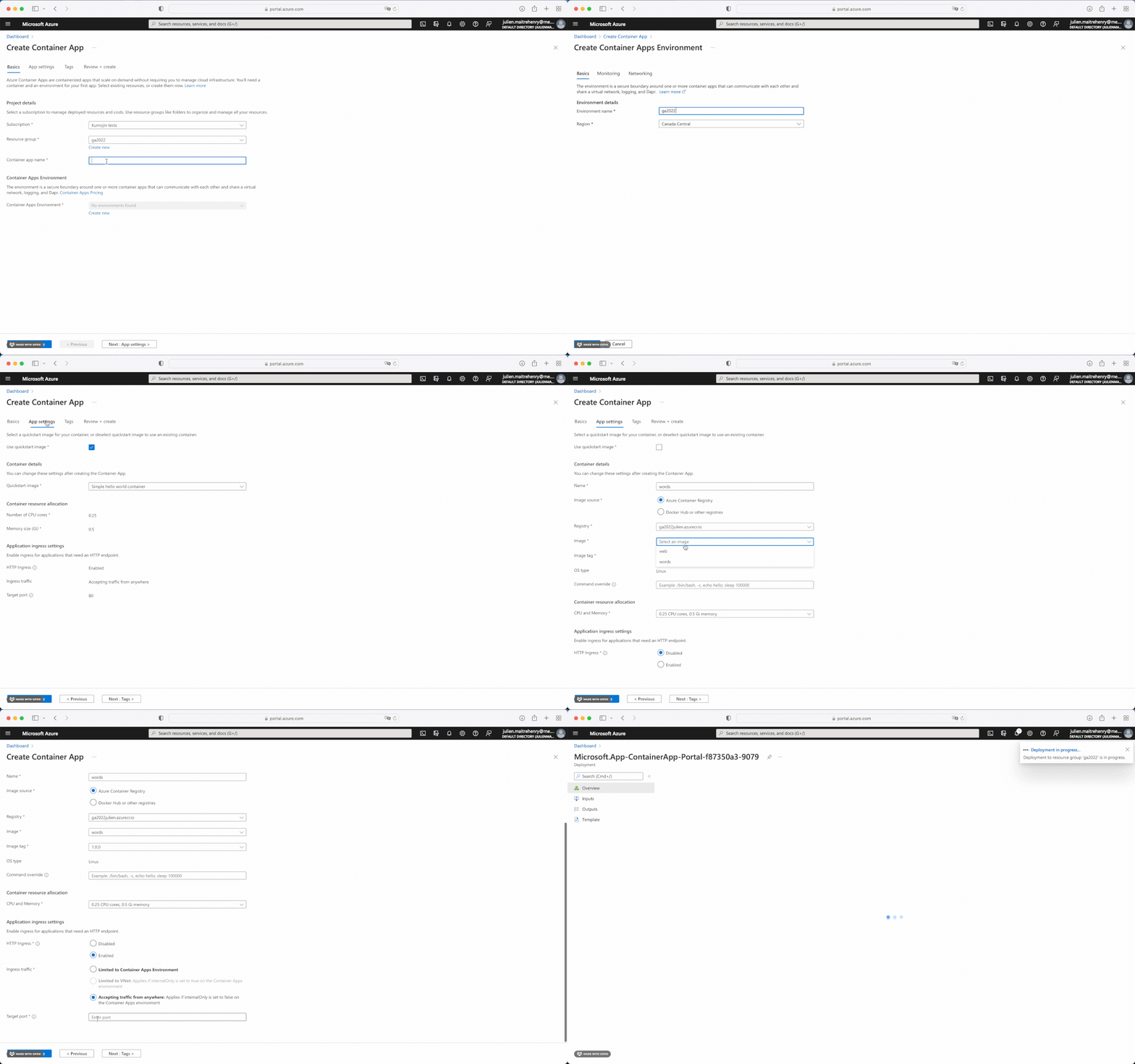
In Azure Portal's Container Apps, create a new application.
In the Basics section, name the application words. A new container app environment must also be created.
In the App settings section, uncheck the Use quickstart image checkbox, name the container words, and select your words:1.0.0 image from the registry. Enable the HTTP ingress, accepting traffic from anywhere, and set the port to 8080.
After the application is deployed, in its Overview, visit the application's URL, appending a /verbs at the end of the path. This should result in a JSON with a word attribute.
web:1.0.0
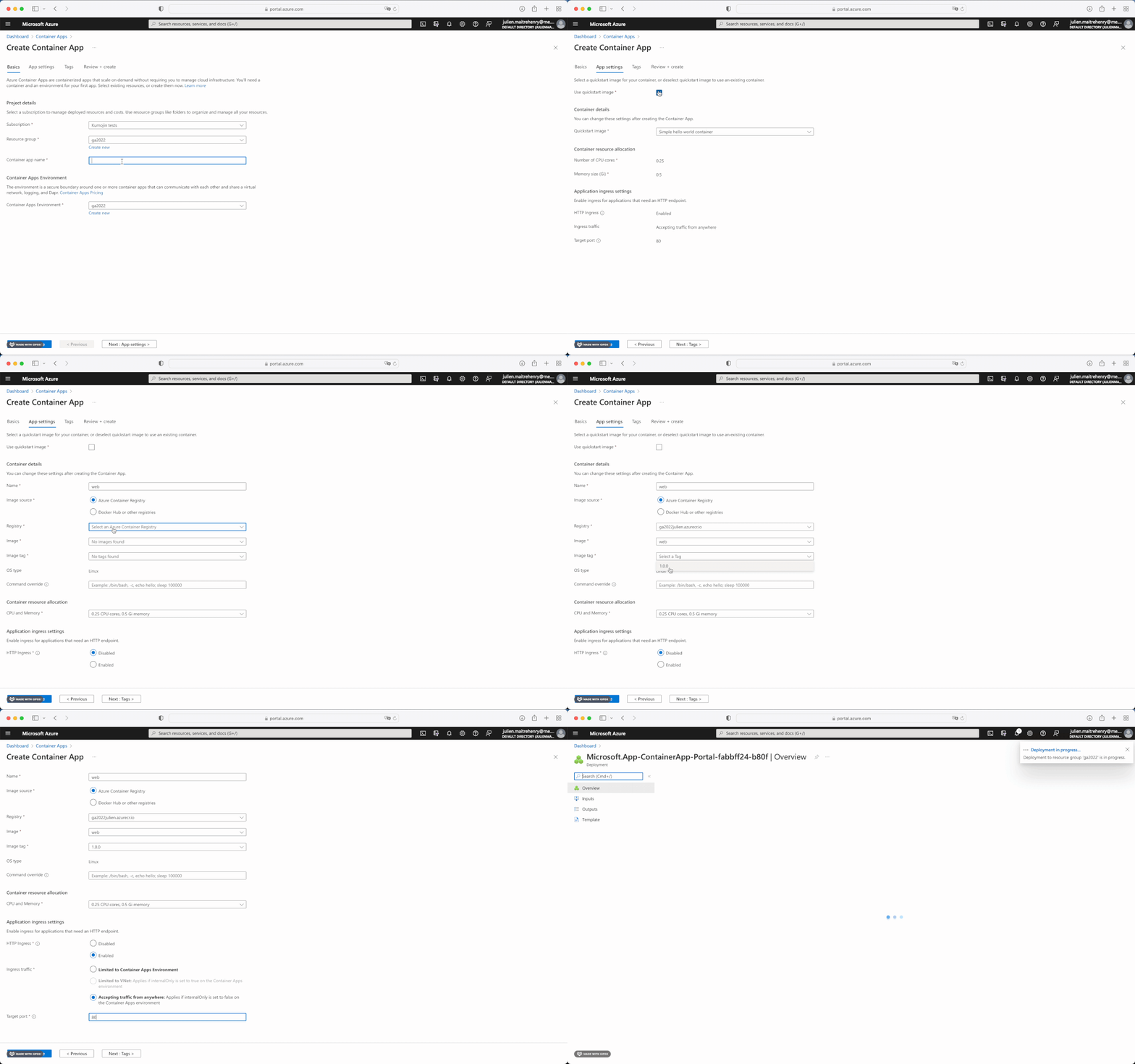
Back in Azure Portal's Container Apps, create another new application.
In the Basics section, name the application web, and select the same container app environment as the one that was created in the previous step.
In the App settings section, uncheck the Use quickstart image checkbox, name the container web, and select your web:1.0.0 image from the registry. Enable the HTTP ingress, accepting traffic from anywhere, and set the port to 80.
After the application is deployed, in its Application > Containers, edit the container, click on the web container, and add an environment variable WORD_API_URL with value set to the words's application's URL without the trailing /.
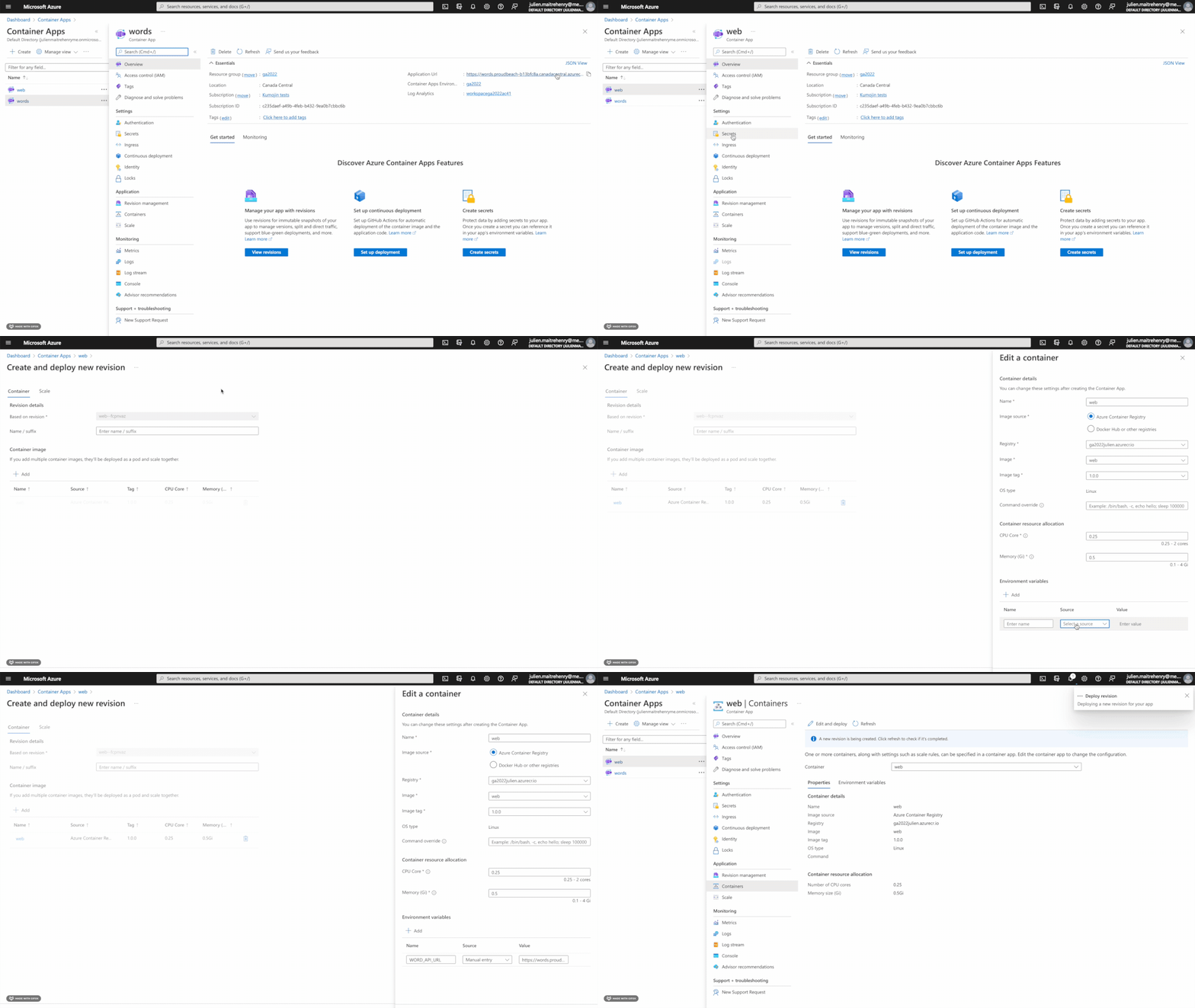
After the web application is redeployed, visit its application URL. Lego blocks should appear on screen with words on them.
Summary
In this step, we created two container apps based on the images that were previously built.